It is a common problem that failing some keys in PC keyboard. But it become cumbersome while you type anything seriously. Replacing or repairing keyboard is not always easy, especially you are using a laptop. The seriousness of the problem depend on the failed key operation. If ENTER, DELETE, SPACE, SHIFT, CTRL, ALT etc are failed, your keyboard is almost at the worst state. Here I am trying share how to dilute this key failure effect.
Method 1 - On screen keyboard(Quickest way)
If you are doing something seriously, and don't have enough time to dismantle keyboard and clean, best method is to use virtual keyboard. On MS Windows, it is built in. You can access it by,
Start - All Programs - Accessories - Accessibility - On-Screen Keyboard
The fundamental advantage is that it is independent on how much keys in your keyboard are failed. Also you can access and use this utility completely using your mouse. In Linux, there is a similar utility named 'onboard' (use command 'onboard' to open it) and most probably it is built in. But it considerably lowers the typing speed.
Method 2 - Key mapper (Quicker enough)
SharpKeys from RandyRants is a good utility (for windows) to assign function of one key to another key. It can be done using a registry hack, but using Sharpkeys is a handy method. A good number of keys are there in your keyboard which are rarely or not used at all. Function keys F1, F2 ..., Win Key, Home, End, Print Screen, Pause/Break. If you use only left or right CTRL key is using other can be contributed for other function, because right and left CTRL keys are considered different. The same is applicable to SHIFT and ALT. Although this method slightly lowers your typing speed, you can still do everything.
Method 3 - Cleaning
Open it, clean well. If you are lucky, it will give life to your keyboard (I am unlucky).
Method 4 - Repair or Purchase
This is the last way. Of course, result will be positive.
Showing posts with label TipsnTricks. Show all posts
Showing posts with label TipsnTricks. Show all posts
Tuesday, July 19, 2011


Saturday, September 18, 2010
How to run custom scripts at Linux startup?
It is a good idea to make your own scripts at the Linux start up. Here I am explaining the things with a simple example. I want to make a directory in desktop named 'folder' in each start up. If it is deleted, a new 'folder' is created in the same place in the next start up. Here is what I did.
first make a new script- here 'my_own_script'. Open the file in gedit and add the following:
Then open terminal and execute this command:
Start up programs are sometimes irritating and delay start up. So if you want to turn off your script from next start up, use command:
first make a new script- here 'my_own_script'. Open the file in gedit and add the following:
#! /bin/bashYou need to change to the correct path in 3rd line. Here 345 means different run levels and 40 and 60 are the order for start and stop. save the file in /etc/init.d .
# chkconfig: 345 40 60
mkdir /home/tom/Desktop/folder
Then open terminal and execute this command:
chkconfig --level 345 my_own_script onThen restart you computer and you can see a directory named 'folder' on your desktop in each start up. For more details, use:
man chkconfigThe mkdir command can be replaced by your own custom scripts. This worked on my PC powered with fedora 12. I found in linux forums that, it will work on Redhat/CentOS/Mandriva.
Start up programs are sometimes irritating and delay start up. So if you want to turn off your script from next start up, use command:
chkconfig --level 345 my_own_script off
Friday, August 27, 2010
Malayalam for Windows
*Note: The above information is adapted from the resources of http://malayalam.web4all.in
The information in this post is specific to Malayalam users in Kerala, India. Other readers may not find anything useful in this post
"I need to do some work in Malayalam in Windows XP. What should I need to do?''
My post here tries to find the answer for the above question. Malayalam implementation can be done in two ways.
1)In-script keyboard - Each corrector in Malayalam is assigned to the key layout in the US keyboard. It become easier only after some practice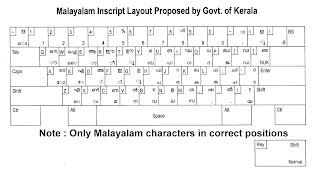 2)Transliteration - This is easier method for beginners. In this method, you just type a word similar to the Malayalam word. (For example അമ്മ in Malayalam can be printed on screen by typing 'amma' in English.
Setting up Windows XP for In-script keyboard
Step1: Go to Control Panel->Regional and Language Options
Click on 'Language' tab
Step2: Check whether the check-box corresponding to "Install files for complex script and right to left languages(including Thai).
If not check it. If it is already checked, go to Step5. Step3: Then Computer ask your Windows CD for further installation of fonts. Then put your CD on the drive and click OK. Wait until complete installation. Then reboot your system after closing all dialog boxes.
Step4: Again do Step1 and this time the check-box will be checked.
Step5: Click 'Details' button. Then click 'Add' on the new dialog box. Choose Malayalam(India) and click OK.
Step6: Close all dialog boxes. In your task bar, you can see the current layout as 'EN" by default. Click on it and choose Malayalam from the list. Then 'EN' is changed to 'MY'. Now Malayalam keyboard is activated. and you can start type in Malayalam.
Open Wordpad (or any other text editor) from Start menu and start typing in Malayalam.
Setting up Windows XP for Transliteration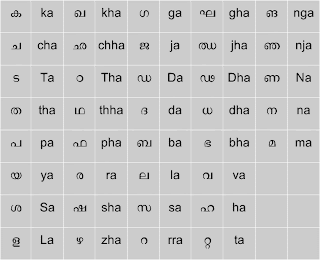
Step1: Download Mozhi Keyman from this link. Install it.
Step2: Just after installation, Mozhi Keyman icon will be visible on your task bar. Click on it and choose 'Mozhi Keymap' from the following list and you are done.
Open a text editor- I recommend Wordpad and type 'amma' and press enter. You can see the difference now.
You will get more information and support from
http://smc.org.in
http://malayalam.web4all.in
The information in this post is specific to Malayalam users in Kerala, India. Other readers may not find anything useful in this post
"I need to do some work in Malayalam in Windows XP. What should I need to do?''
My post here tries to find the answer for the above question. Malayalam implementation can be done in two ways.
1)In-script keyboard - Each corrector in Malayalam is assigned to the key layout in the US keyboard. It become easier only after some practice
 2)Transliteration - This is easier method for beginners. In this method, you just type a word similar to the Malayalam word. (For example അമ്മ in Malayalam can be printed on screen by typing 'amma' in English.
Setting up Windows XP for In-script keyboard
Step1: Go to Control Panel->Regional and Language Options
Click on 'Language' tab
Step2: Check whether the check-box corresponding to "Install files for complex script and right to left languages(including Thai).
If not check it. If it is already checked, go to Step5.
 Step3: Then Computer ask your Windows CD for further installation of fonts. Then put your CD on the drive and click OK. Wait until complete installation. Then reboot your system after closing all dialog boxes.
Step4: Again do Step1 and this time the check-box will be checked.
Step5: Click 'Details' button. Then click 'Add' on the new dialog box. Choose Malayalam(India) and click OK.
Step6: Close all dialog boxes. In your task bar, you can see the current layout as 'EN" by default. Click on it and choose Malayalam from the list. Then 'EN' is changed to 'MY'. Now Malayalam keyboard is activated. and you can start type in Malayalam.
Open Wordpad (or any other text editor) from Start menu and start typing in Malayalam.
Setting up Windows XP for Transliteration

Step1: Download Mozhi Keyman from this link. Install it.
Step2: Just after installation, Mozhi Keyman icon will be visible on your task bar. Click on it and choose 'Mozhi Keymap' from the following list and you are done.
Open a text editor- I recommend Wordpad and type 'amma' and press enter. You can see the difference now.
You will get more information and support from
http://smc.org.in
http://malayalam.web4all.in
Saturday, March 13, 2010
Inside the Mosquito killer

Nowadays, people widely uses mosquito killer bats because of their easy usage. The product is imported from China for very cheap price. There's some electronics inside it. If you understand the working principle of that circuit and if you are an owner of soldering iron, you can easily troubleshoot the problems and can use the product for a long time.
The power source of old products was dry cells, while now it is rechargable battery of 2.4V. There is bridge rectifier and a capacitor

 is used to get enough power to charge the battery. Transistor become ON, when switch is closed and the sudden change in current in the primary coil in the transformer forms a higher voltage. The voltage is coupled to the secondary coil. transformer winding is so that peak voltage will be about 2000V. The diode network only pass a fraction of the output voltage to the metal net.
Wednesday, November 18, 2009
How to prevent virus from USB pendrive
Sometimes attacks of virus through USB pen drives are a real headache. Even though most of them are trivial, anti virus programs may not catch them. Use this following techniques in order to prevent them.
- Make a raw file in the name same of a virus file. Most probably, these these files will be hidden. To view this, a good way is open the pen drive in Linux OS. you can see some names such as "virus.exe" on the root folder of pen drive. If it exists, open it using a text editor program and delete all the characters and if you want, include some raw characters and save. If you don't have any such files, but want to prevent them, you first of all need to find the name of that virus file and make a raw file in any text editor and save it in the same extension of the virus file. I successfully prevented a most common virus named "autorun.inf". Warning : This method not always work.
- Use a good anti virus on your PC as well as in your pen drive. Some good links are http://www.usbantivirus.net/ and http://www.zbshareware.com/download.html
- Format your pen drive well, if your head ache is cumbersome. Some virus programs can override quick format in windows. So use GParted.Prevention is better than cure. Formatting is the last chance.
Subscribe to:
Posts (Atom)