Saturday, September 18, 2010

How to run custom scripts at Linux startup?

It is a good idea to make your own scripts at the Linux start up. Here I am explaining the things with a simple example. I want to make a directory in desktop named 'folder' in each start up. If it is deleted, a new 'folder' is created in the same place in the next start up. Here is what I did.
first make a new script- here 'my_own_script'. Open the file in gedit and add the following:
#! /bin/bash
# chkconfig: 345 40 60
mkdir /home/tom/Desktop/folder
You need to change to the correct path in 3rd line. Here 345 means different run levels and 40 and 60 are the order for start and stop. save the file in /etc/init.d .
Then open terminal and execute this command:
chkconfig --level 345 my_own_script on
Then restart you computer and you can see a directory named 'folder' on your desktop in each start up. For more details, use:
man chkconfig
The mkdir command can be replaced by your own custom scripts. This worked on my PC powered with fedora 12. I found in linux forums that, it will work on Redhat/CentOS/Mandriva.
Start up programs are sometimes irritating and delay start up. So if you want to turn off your script from next start up, use command:
chkconfig --level 345 my_own_script off

Thursday, September 9, 2010

Indian languages support and software tools

Indian Govt. have an official website for Indian language support. You can download language support and software tools from this website or order for a free CD. The major tools are:
  1. True type fonts with keyboard driver
  2. Multifont keyborad engine for the true type fonts
  3. Unicode complient fonts
  4. BHARATEEYA Open Source
  5. Language OCR
  6. Language spell checker
  7. Bilingual dictionary
  8. Font design tool
  9. Transliteration tool
  10. Language text editor
  11. Tutor package
  12. Text to speech system
  13. Database sorting tool
  14. Number to word tool
  15. Typing tutor
  16. Language suppoted microsoft excel
  17. Type assistant
The CD is released by Ministry of Communications and Information Technology, Government of India. Contibuters are, C-DAC, Cyber space multimedia Ltd.,C K Technologies, Cadgraf Digitals System Ltd., Cyber Thomson, IMRC.
Click here to visit Technology Development for Indian Languages(TDIL).

Monday, August 30, 2010

Reveal Them! A Qt entertainment

I do some Qt exercise when I get leisure time. RevealThem is just the after effect but I hope source code will be useful for somebody. While I was over consuming my vacation in front of TV, found a nice program like RevealThem. Hiding a celebrity behind a brick wall, and player can remove bricks one at a time so that, a part of the face is visible. People get higher points if they identify the celebrity with minimum number of picks. I found it was interesting to realize in Qt.
How to use the software?
Step1: Download the program(Go to end of this post)
Step2: Download some pictures of celebrities in .jpg format and save it in images/ directory in the directory where the program is installed.
Step3: Open the executable and click 'Load Image'. then you can pick bricks by clicking on it and select correct answer from the list and click 'Check' button. For each pick you, lose your 10 points.
Step4: This program is just for fun only.

Download source code (Tested in both Linux and Windows - 3.27KB)
Download Windows binary (5.03MB)

Saturday, August 28, 2010

Qt Programming in Malayalam Part-1


Qt Programming in Malayalam is quite easy. Most of the strings used in Qt is of type QString. QString support all kind of unicode standards. So one can include mathematica and technical symbols, and non-English characters. Malayalam characters are also included in unicode. So usage of Malayalam in Qt is possible almost anywhere in Qt software designing. There are three major standards for unicode- UTF8-8bit, UTF-16-16bit, UTF-32-32bit. QString supports all standards and there's a bunch of translating functions to and fro for transforming QString to other types such as const char*.

You can transform simple programs in Qt to Malayalam with a little care. But still there may be problems while playing with non-English languages. Like other GUI's Qt is also limited in support to non-English languages, but still it is translatable.
Download this example (Windows binary - 4.76MB)
Download the source code (Tested in both Linux and Windows - 3.27KB)

Also read  Qt Programming in Malayalam Part-2

Friday, August 27, 2010

Malayalam for Windows

*Note: The above information is adapted from the resources of http://malayalam.web4all.in
The information in this post is specific to Malayalam users in Kerala, India. Other readers may not find anything useful in this post
"I need to do some work in Malayalam in Windows XP. What should I need to do?''
My post here tries to find the answer for the above question. Malayalam implementation can be done in two ways.
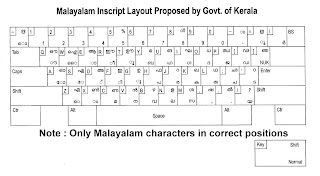
1)In-script keyboard - Each corrector in Malayalam is assigned to the key layout in the US keyboard. It become easier only after some practice2)Transliteration - This is easier method for beginners. In this method, you just type a word similar to the Malayalam word. (For example അമ്മ in Malayalam can be printed on screen by typing 'amma' in English.

Setting up Windows XP for In-script keyboard
Step1: Go to Control Panel->Regional and Language Options
Click on 'Language' tab
Step2: Check whether the check-box corresponding to "Install files for complex script and right to left languages(including Thai).
If not check it. If it is already checked, go to Step5.Step3: Then Computer ask your Windows CD for further installation of fonts. Then put your CD on the drive and click OK. Wait until complete installation. Then reboot your system after closing all dialog boxes.
Step4: Again do Step1 and this time the check-box will be checked.
Step5: Click 'Details' button. Then click 'Add' on the new dialog box. Choose Malayalam(India) and click OK.
Step6: Close all dialog boxes. In your task bar, you can see the current layout as 'EN" by default. Click on it and choose Malayalam from the list. Then 'EN' is changed to 'MY'. Now Malayalam keyboard is activated. and you can start type in Malayalam.
Open Wordpad (or any other text editor) from Start menu and start typing in Malayalam.

Setting up Windows XP for Transliteration
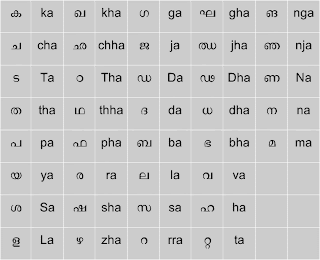
Step1: Download Mozhi Keyman from this link. Install it.
Step2: Just after installation, Mozhi Keyman icon will be visible on your task bar. Click on it and choose 'Mozhi Keymap' from the following list and you are done.
Open a text editor- I recommend Wordpad and type 'amma' and press enter. You can see the difference now.

You will get more information and support from
http://smc.org.in
http://malayalam.web4all.in

Sunday, July 4, 2010

mcu8051 IDE for Windows

mcu8051IDE can now be used in Microsoft Windows also. If you are not aware of mcu8051IDE, read my previous post: Introduction to mcu8051IDE

Download the following:
First install ActiveTcl and SDCC and then mcu8051IDE.
Then you have just completed mcu8051IDE installation in windows.
If you want to report bug, go here.

How to activate BSNL 3G in iPhone?

Maintaining iPhone features in India is not easy because almost all mobile phone users are belong to Nokia or Sony Ericsson. So support for Apple iPhone is less. To use BSNL 3G features, you require a 3G supported mobile phone and BSNL 3G USIM. Normally to get activated in BSNL 3G, you need to send {your mobile model} to 58355:

example: NOKIA E65
to 58355

It worked for my Nokia E65. But for iPhone it is currently not possible because, they are not having the settings for Apple iPhone. I activated 3G successfully and I did what follows.

Step1: Go Settings->General->Network->Cellular Data Network
Step2: Edit under the tab - Cellular Data
APN => bsnlnet
Usename => {Left blank}
Password => {Left blank}
Step3: Go Settings->General->Network
Step4: Switch 'Enable 3G' to ON. Also switch 'Cellular Data' to ON if not.

*Note: 3G will work if you are in a 3G coverage. Else you can get connected and use internet with 2G or 2.5G. If you are not in a 3G coverage area, it is better to turn off 3G. This will save a lot of battery. If you are in a 3G coverage, and you turned on 3G on your iPhone, a '3G' symbol will be displayed on top left corner of your iPhone screen. If you are in 2G, a 'E' symbol is displayed to remind that you are in EDGE network.

Step5: You are done. Use 'Safari' to browse internet.

If you are having any problem please report. If you found any other methods, please comment about it.